


Enabling ASPM on a Realtek RTL8125B 2.5GbE NIC in Proxmox/Linux
If you’re running a home server or a Proxmox node and you want to add 2.5GbE networking without spending a lot of money, the Realtek RTL8125B is a pretty popular option. It’s inexpensive, widely available, and comes in a few different form factors, including standard PCIe and M.2 A+E, which is the slot that normally sits empty once you’ve pulled out the Wi-Fi card. Handy if you’ve run out of PCIe slots.
On Linux and Proxmox, the card will get picked up automatically by the r8169 driver, which is the kernel’s built-in driver for a wide range of Realtek NICs. However, not only is there a significant performance deficit compared to the dedicated r8125 driver, there’s also a significant catch worth knowing about.
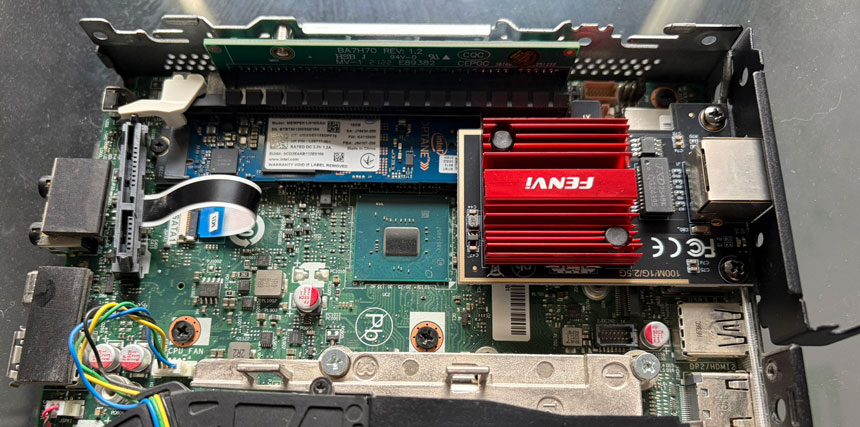
ASPM (Active State Power Management)
The main practical difference between the generic r8169 driver and Realtek’s dedicated r8125 driver comes down to power management. Specifically, ASPM (Active State Power Management) which is the mechanism that allows PCIe devices to drop into low-power states when they’re not doing much.
In r8169, ASPM support is disabled by default for the RTL8125 chip. The reason goes back to early hardware revisions of the card, which had stability issues when entering low-power states while linked at 2.5GbE. Realtek’s fix was to disable ASPM for affected cards, but the re-enable never made it back into r8169 for the newer, fixed revisions. The real-world consequence of this is that if you’re running an Intel CPU, your processor won’t be able to reach C-states beyond C2 or C3 at idle.
root@hostname:~# lspci -knn | grep -iA3 net

01:00.0 Ethernet controller [0200]: Realtek Semiconductor Co., Ltd. RTL8125 2.5GbE Controller [10ec:8125] (rev 05)
        Subsystem: Realtek Semiconductor Co., Ltd. Device [10ec:0123]
        Kernel driver in use: r8169
        Kernel modules: r8169


root@hostname:~# lspci -vv | awk '/ASPM/{print $0}' RS= | grep --color -P '(^[a-z0-9:.]+|ASPM;|Disabled;|Enabled;)'

00:01.0 PCI bridge: Intel Corporation 6th-10th Gen Core Processor PCIe Controller (x16) (rev 07) (prog-if 00 [Normal decode])
                LnkCtl: ASPM L1 Disabled; RCB 64 bytes, LnkDisable- CommClk+
01:00.0 Ethernet controller: Realtek Semiconductor Co., Ltd. RTL8125 2.5GbE Controller (rev 05)
LnkCtl: ASPM L1 Disabled; RCB 64 bytes, LnkDisable- CommClk+The r8125 driver, by contrast, supports ASPM out of the box. So the fix is either to swap drivers or to manually re-enable ASPM, which is exactly what the rest of this post covers.
Option 1: Manually Enable ASPM on r8169 Driver
If you’d rather stick with the built-in r8169 driver and just fix the ASPM issue, you can do that by poking the setting directly through the kernel’s sysfs interface. No extra drivers needed. First, find your device’s PCI address:
#Find your device's PCI address
lspci | grep -i realtekYou’re looking for something like “03:00.0 Ethernet controller: Realtek….” That 03:00.0 part is your device ID. Once you have it, you can enable L1 ASPM with:
#Enabling L1 ASPM, replacing 0000:03:00.0 with your actual device path.
echo 1 > /sys/bus/pci/devices/0000:03:00.0/link/l1_aspmThe catch with this approach is that it doesn’t survive a reboot. To make it persistent, we can create a simple onestop systemd service:
#Create a service file
nano /etc/systemd/system/aspm-rtl8125.service


#Paste the following into this file
[Unit]
Description=Enable ASPM L1 for Realtek RTL8125B
After=network.target

[Service]
Type=oneshot
ExecStart=/bin/sh -c 'echo 1 > /sys/bus/pci/devices/0000:03:00.0/link/l1_aspm'
RemainAfterExit=yes

[Install]
WantedBy=multi-user.targetWe’ll reload the systemd daemon to recognise the new file, then enable it so it runs on every boot:
systemctl daemon-reload

systemctl enable --now aspm-rtl8125.serviceAn alterative way to implement this option is with a bash script, first developed by Matt Gadient, which we can run at reboot in our crontab:
#!/bin/bash

# Warning: Use at your own risk. Created to aid with the Realtek C-State issues mentioned at:
# https://mattgadient.com/7-watts-idle-on-intel-12th-13th-gen-the-foundation-for-building-a-low-power-server-nas/

# INSTRUCTIONS:

# Rename this to end in .sh, then run it, maybe like this:
#     mv RTL8125-ASPM.sh.txt RTL8125-ASPM.sh
#     chmod +x RTL8125-ASPM.sh
#     ./RTL8125-ASPM.sh

# This will attempt to enable ASPM L1 on a Realtek RTL8125 and/or RTL8168, as recent Linux kernels
# disable L1 on most Realtek Ethernet adapters due to issues experienced by some
# users. This must be run as sudo/root. If it doesn't cause issues, run after each boot.

# You may need to change RTLDEVID from 0x8125 to the device ID of your Realtek network card.
# One way to find it is to run lspci, find the PCI ID of your Realtek Ethernet (example: 03:00.0),
# and then (using the 03:00.0 example above) type:
#    cat /sys/bus/pci/devices/0000\:03\:00.0/device
RTLVENID="0x10ec"
RTLDEVID="0x8125"
RTLDEVIDB="0x8168"

PCIDEVICES=$(ls /sys/bus/pci/devices/ | sort -u)
RTLFOUND=0
echo ""
echo "Checking for Realtek LAN and enabling ASPM L1"
for i in $PCIDEVICES; do
	DEVICEID=$(cat /sys/bus/pci/devices/$i/device)
	if [[ $DEVICEID == *"$RTLDEVID"* || $DEVICEID == *"$RTLDEVIDB"* ]]; then
		VENDORID=$(cat /sys/bus/pci/devices/$i/vendor)
		if [[ $VENDORID == *"$RTLVENID"* ]]; then
			echo " -Enabling L1 on /sys/bus/pci/devices/$i/link/l1_aspm"
			echo 1 > /sys/bus/pci/devices/$i/link/l1_aspm
			RTLFOUND=1
		fi
	fi
done
if [[ $RTLFOUND -eq 0 ]]; then
	echo " -Unable to find a matching PCI device with vendor id $RTLVENID and device id $RTLDEVID."
fiOption 2: Install the r8125 DKMS driver
The cleaner long-term fix is to replace r8169 with Realtek’s dedicated r8125 driver. Since it compiles as a kernel module, you will have to recompile it every kernel update. Using the DKMS version, specifically awesometic’s well-maintained package on GitHub, means the driver will automatically rebuild itself whenever your kernel updates.
There are three ways to install it, and they’re listed here in order of recommendation.
Method A: Launchpad PPA (recommended)
This is the easiest and most maintainable approach. The PPA will keep the driver up to date alongside your other packages:
#Add the Launchpad PPA
sudo add-apt-repository ppa:awesometic/ppa

#Then install the package using apt tool
sudo apt install realtek-r8125-dkmsMethod B: Debian package
If you’d rather not add a PPA, you can grab the latest .deb directly from the releases page on GitHub and install it manually:
#Install dkms
apt update && apt install -y dkms

#Download the latest .deb package from Github
wget https://github.com/awesometic/realtek-r8125-dkms/releases/download/9.016.01-1/realtek-r8125-dkms_9.016.01-1_amd64.deb

#Install
dpkg -i realtek-r8125-dkms_9.016.01-1_amd64.deb

#If dependency error occurs, try to fix that with apt command
apt install --fix-brokenMethod C: dkms-install.sh
If you want to clone the repo and install directly from source, there’s a handy install script included:
git clone https://github.com/awesometic/realtek-r8125-dkms.git

cd realtek-r8125-dkms

sudo ./dkms-install.shNote: there’s also an autorun.sh in the repo, but that’s Realtek’s original script and it only installs the driver for the currently running kernel. It’s not a proper DKMS install, so it won’t survive a kernel update. Stick with dkms-install.sh unless you have a specific reason not to.
Blacklisting r8169 driver.
Whichever method you used, the driver won’t actually take over on its own yet. After installation, check whether r8169 is still loaded:
root@hostname:~# dkms status
realtek-r8125/9.016.01, 6.17.13-2-pve, amd64: installed


root@hostname:~# lspci -knn | grep -iA3 net
01:00.0 Ethernet controller [0200]: Realtek Semiconductor Co., Ltd. RTL8125 2.5GbE Controller [10ec:8125] (rev 05)
        Subsystem: Realtek Semiconductor Co., Ltd. Device [10ec:0123]
        Kernel driver in use: r8169
Kernel modules: r8169, r8125If it shows up, you’ll need to blacklist it so r8125 can take priority. The repo’s README has a clean one-liner for this:
sudo tee -a /etc/modprobe.d/blacklist-r8169.conf > /dev/null <<EOT
# To use r8125 driver explicitly
blacklist r8169
EOTThen update your initramfs and reboot:
sudo update-initramfs -u

sudo rebootAfter coming back up, confirm the right driver is in use:
root@hostname:~# dkms status
realtek-r8125/9.016.01, 6.17.13-2-pve, amd64: installed


root@hostname:~# lspci -knn | grep -iA3 net
01:00.0 Ethernet controller [0200]: Realtek Semiconductor Co., Ltd. RTL8125 2.5GbE Controller [10ec:8125] (rev 05)
        Subsystem: Realtek Semiconductor Co., Ltd. Device [10ec:0123]
        Kernel driver in use: r8125
Kernel modules: r8169, r8125Conclusion
Neither of these fixes is particularly complicated, but the payoff is real, especially if you’re running a home server or a Proxmox node that’s on 24/7. A NIC driver quietly blocking your CPU from reaching its deeper idle states is exactly the kind of thing that’s easy to miss, and equally easy to fix once you know it’s there.
If you just want something working quickly with minimal changes to your setup, the sysfs approach in Option 1 is perfectly fine. It’s two commands plus a systemd service and you’re done. If you’re thinking longer term, or you’d rather not have a brittle PCI address sitting in a service file, Option 2 with the DKMS driver is the tidier solution. The PPA route in particular means you can largely forget about it once it’s installed.
root@hostname:~# lspci -vv | awk '/ASPM/{print $0}' RS= | grep --color -P '(^[a-z0-9:.]+|ASPM;|Disabled;|Enabled;)'

00:01.0 PCI bridge: Intel Corporation 6th-10th Gen Core Processor PCIe Controller (x16) (rev 07) (prog-if 00 [Normal decode])
                LnkCtl: ASPM L1 Enabled; RCB 64 bytes, LnkDisable- CommClk+
01:00.0 Ethernet controller: Realtek Semiconductor Co., Ltd. RTL8125 2.5GbE Controller (rev 05)
LnkCtl: ASPM L1 Enabled; RCB 64 bytes, LnkDisable- CommClk+Either way, once ASPM is working correctly you should see your CPU spending meaningful time in C6 and beyond at idle, rather than being stuck in the shallower states. How much of a difference that makes to your power draw will depend on your specific hardware, but on a modern Intel platform it’s not unusual to see idle consumption drop by a few watts. Over the course of a year running continuously, that adds up to something worth caring about.